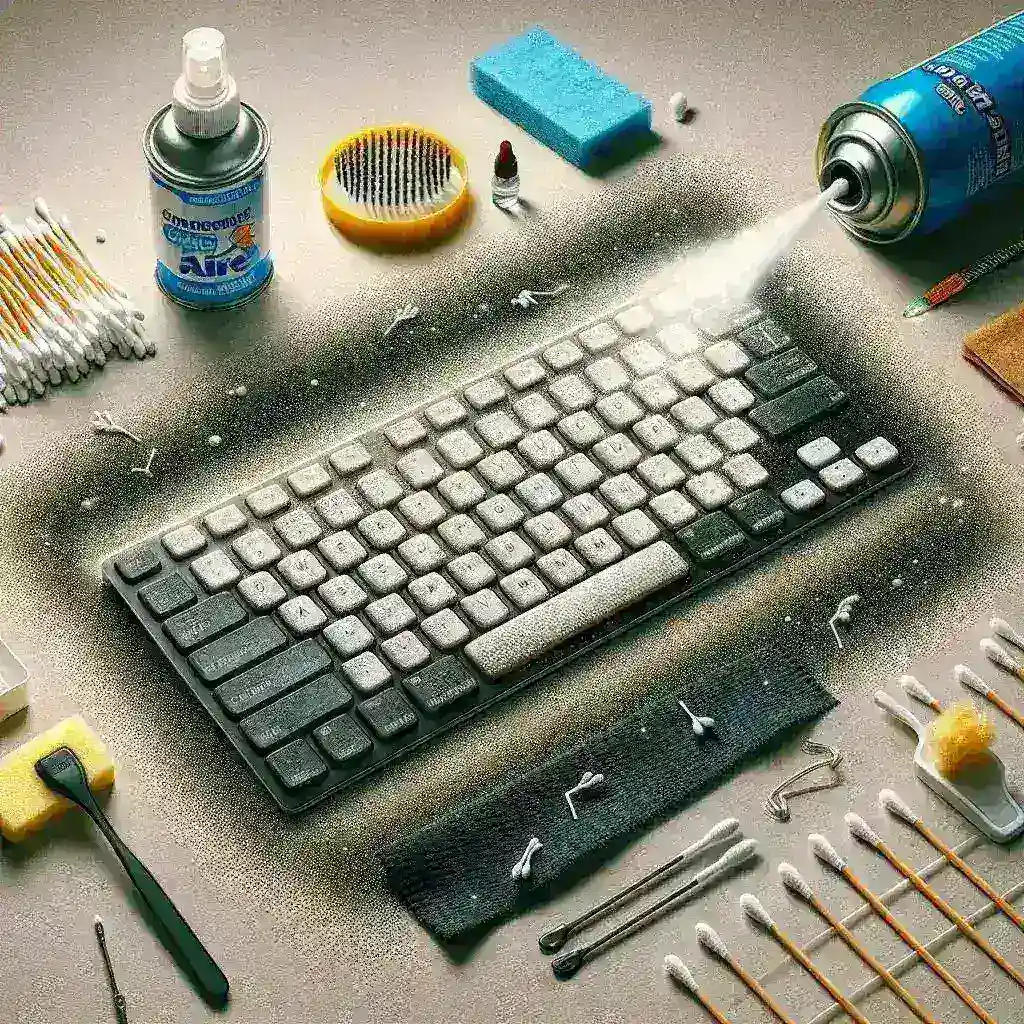
Keyboards are essential tools for everyday computing, but they can quickly become breeding grounds for dirt, dust, and germs. Regular cleaning is crucial to maintain the performance and longevity of your keyboard. In this comprehensive guide, we will walk you through the steps to clean your keyboard, ensuring it remains in optimal condition. Whether you are a professional, a student, or a hobbyist, this guide will provide you with the knowledge and tools you need to keep your keyboard clean and functional.
Why Clean Your Keyboard?
Cleaning your keyboard is more than just a matter of aesthetics. A dirty keyboard can lead to several issues:
- Reduced Performance: Dust and debris can interfere with the keys’ functionality, leading to sticking or unresponsive keys.
- Health Risks: Keyboards can harbor a significant amount of bacteria and germs, which can cause illnesses if not cleaned regularly.
- Aesthetic Appeal: A clean keyboard looks better and can enhance your workspace’s overall appearance.
- Longevity: Regular cleaning can extend the life of your keyboard, saving you money on replacements.
Tools and Materials Needed
Before you begin, make sure you have the following tools and materials:
- Microfiber Cloths: These are ideal for wiping down surfaces without leaving lint behind.
- Compressed Air: This is useful for blowing out dust and debris from hard-to-reach areas.
- Isopropyl Alcohol: A 70% solution is effective for disinfecting and cleaning without causing damage to electronic components.
- Cotton Swabs: These are perfect for cleaning between keys and in small spaces.
- Soft Brush: A soft-bristled brush can help remove dust and debris from the surface of the keys.
- Water: A small amount of water can be used to dampen a cloth for cleaning, but it should be used sparingly to avoid water damage.
Step-by-Step Guide to Clean Your Keyboard
Step 1: Turn Off and Unplug Your Keyboard
To ensure safety, always turn off and unplug your keyboard before cleaning. This prevents any accidental key presses or electrical issues.
Step 2: Remove Surface Dust and Debris
Use a soft brush or a microfiber cloth to gently remove any surface dust and debris. This initial step helps to clear the way for more thorough cleaning.
Step 3: Use Compressed Air
Compressed air is a powerful tool for dislodging and removing dust and debris from between the keys. Hold the can at an angle and spray the air into the gaps between the keys. Be sure to follow the instructions on the can and avoid excessive use to prevent damage.
Step 4: Clean Between the Keys
For a more thorough clean, use cotton swabs dipped in a small amount of isopropyl alcohol. Gently wipe between the keys and in any crevices. The alcohol will evaporate quickly, leaving no residue behind. Be careful not to saturate the swab, as excess liquid can damage the keyboard.
Step 5: Wipe Down the Surface
Using a microfiber cloth dampened with a small amount of water or a 70% isopropyl alcohol solution, gently wipe down the surface of the keys and the keyboard. Avoid using too much liquid, as it can seep into the keyboard and cause damage. Wipe in a circular motion to remove any remaining dirt or grime.
Step 6: Disinfect the Keyboard
To kill any bacteria or germs, use a disinfecting wipe or a cloth dampened with a disinfectant solution. Make sure the cloth is not too wet and gently wipe down the entire keyboard. Allow it to air dry completely before using it again.
Step 7: Allow the Keyboard to Dry
After cleaning, allow the keyboard to air dry completely. This can take a few hours, depending on the amount of liquid used. Once it is dry, you can plug it back in and use it as usual.
Additional Tips for Keyboard Maintenance
Avoid Eating and Drinking Near Your Keyboard
One of the best ways to prevent a buildup of dirt and debris is to avoid eating and drinking near your keyboard. Crumbs and spills can quickly accumulate and cause issues.
Regular Cleaning
Making a habit of cleaning your keyboard regularly can help maintain its performance and longevity. Aim to clean your keyboard at least once a month to keep it in top condition.
Use a Keyboard Cover
A keyboard cover can provide an additional layer of protection against dust and debris. These covers are easy to install and can be removed for cleaning when needed.
Check the Manufacturer’s Instructions
Always refer to the manufacturer’s instructions for specific cleaning recommendations. Some keyboards may have unique features or materials that require special care.
Common Mistakes to Avoid
- Using Too Much Liquid: Excess water or cleaning solution can seep into the keyboard and cause damage. Always use a damp cloth, not a wet one.
- Using Harsh Chemicals: Avoid using harsh chemicals or abrasive cleaners, as they can damage the surface of the keys and the keyboard itself.
- Ignoring Spills: If you spill something on your keyboard, turn it off and unplug it immediately. Use a damp cloth to clean the spill and allow the keyboard to dry completely before using it again.
- Forgetting to Unplug: Always turn off and unplug your keyboard before cleaning to prevent accidental key presses and electrical issues.
Conclusion
Cleaning your keyboard is a simple yet essential task that can significantly improve its performance and longevity. By following the steps outlined in this guide, you can ensure that your keyboard remains clean, functional, and free from bacteria and germs. Regular maintenance will not only enhance your computing experience but also extend the life of your device. So, take a few minutes each month to give your keyboard the attention it deserves and enjoy a spotless and functional workspace.
Deixe um comentário